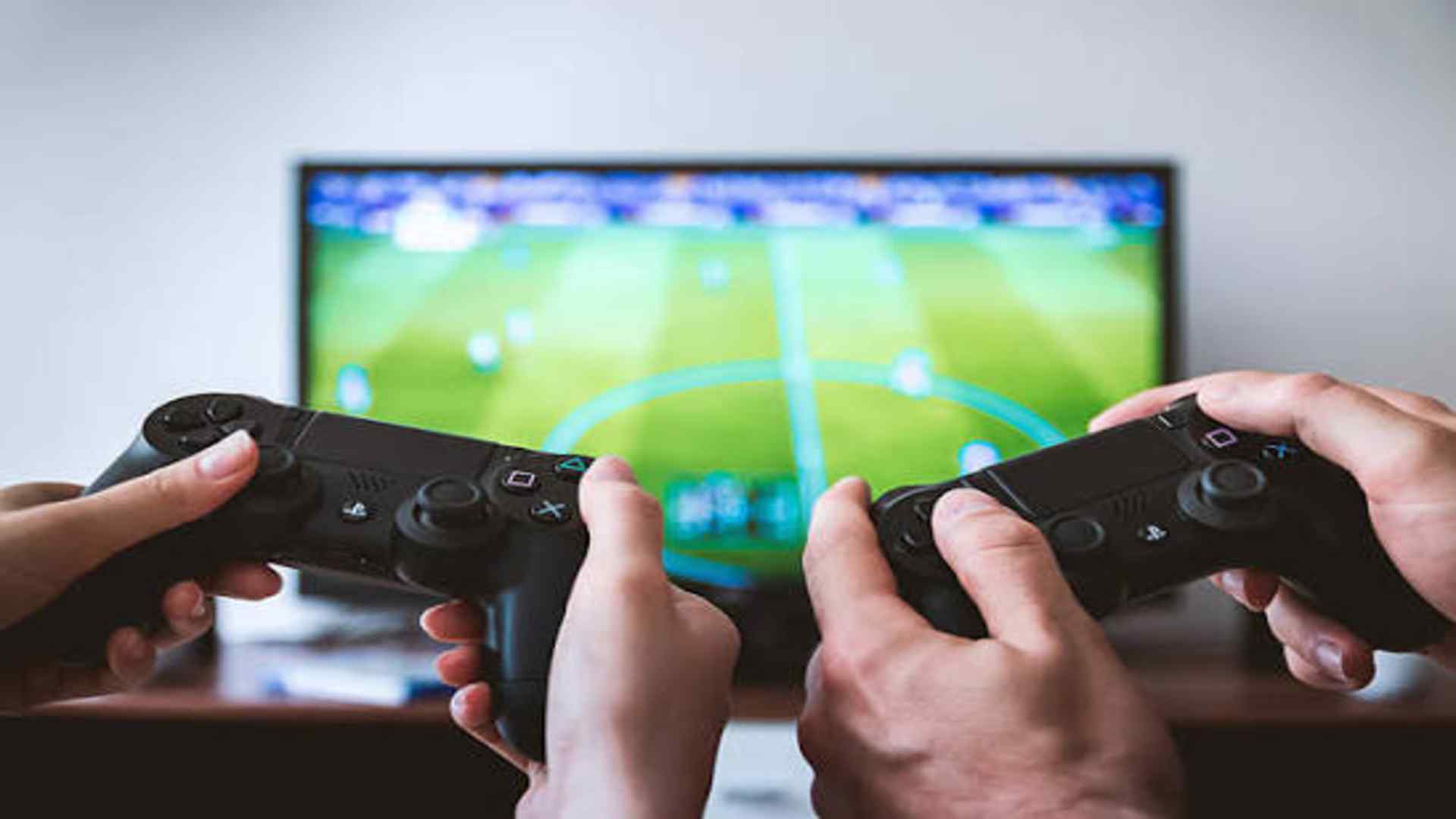
Playing Star Wars Battlefront 2 with a controller can significantly enhance your gameplay experience, especially when navigating intense starfighter dogfights or ground skirmishes. While console versions natively support gamepads, PC players often encounter specific compatibility challenges depending on their hardware and launcher settings. This guide covers everything you need to know to seamlessly configure your controller and resolve common input issues on PC.
Native Controller Compatibility and Supported Hardware
Star Wars Battlefront 2 features native support for Xbox controllers, including standard Xbox One and Series X/S gamepads. PlayStation controllers, such as the DualShock 4 and DualSense, are also supported natively when connected via a direct USB connection on Windows. However, wireless Bluetooth connections for PlayStation controllers may require extra configuration depending on your operating system.
Third-party controllers utilizing XInput standards generally function without additional software requirements on modern systems. If you are using a generic DirectInput device, you may need an emulation tool to map your buttons properly before launching the game. Ensuring your gamepad firmware is updated can also prevent unexpected disconnects during matches.
Setting Up Controllers via Steam and the EA App
When launching the game through Steam, utilizing Steam Input can simplify button mapping and overall controller recognition. You can enable global controller settings within the Steam menu to automatically translate inputs for non-Xbox gamepads. This setup prevents input lag and allows players to customize stick sensitivity profiles to fit their personal preferences.
If you are playing through the EA App directly, launch configurations rely heavily on Windows native drivers. Make sure overlay settings in the EA App do not conflict with active controller mapping software running in the background. Closing competing background programs like DS4Windows when native XInput devices are connected can prevent double-input bugs.
Fixing Common Controller Detection Issues
One frequent issue PC players face is the game failing to detect gamepad inputs upon launch. This often happens if a keyboard and mouse input is registered simultaneously, or if virtual gaming inputs remain enabled on your system. Disconnecting unnecessary USB peripherals can help isolate your primary controller and restore full functionality.
Another effective solution involves checking in-game controller settings to ensure the proper layout scheme is active. Adjusting deadzone thresholds within your system controller settings can also resolve minor thumbstick drift during gameplay. Restarting the game with the controller pre-connected via USB usually fixes unresponsiveness.
Optimizing Layouts for Infantry and Vehicle Combat
Fine-tuning your controller layouts can provide a strategic advantage during competitive multiplayer matches. Adjusting infantry control sensitivity allows for smoother aiming, while tweaking vehicle response curves makes piloting starfighters far more precise. Players can experiment with alternate button schemes to keep crucial actions like rolling accessible without taking thumbs off the sticks.
Customizing your control setup ensures seamless transitions between ground troop movement and starship maneuvering. Spending time in custom arcade games helps test these layout changes in a low-risk environment before entering online lobbies. With the right adjustments, playing Star Wars Battlefront 2 with a controller offers an immersive and highly responsive experience.