The PlayStation 5 is an incredibly powerful gaming machine, but many players want to integrate it directly into their existing computer setups. Whether you are looking to stream gameplay, capture high-quality videos, or simply use your desktop monitor as a display, bridging the gap between your console and desktop opens up a world of versatile possibilities. Understanding the correct hardware requirements and software settings ensures a seamless integration with minimal latency.
Streaming Console Gameplay via Remote Play
Sony offers a dedicated software solution called PS5 Remote Play that allows users to stream their console interface directly onto a desktop or laptop monitor. To get started, you need to download the official application onto your computer and ensure both devices are signed into the exact same PlayStation Network account. For the most stable connection and lowest input lag, connecting both your computer and your console using wired Ethernet cables is highly recommended.
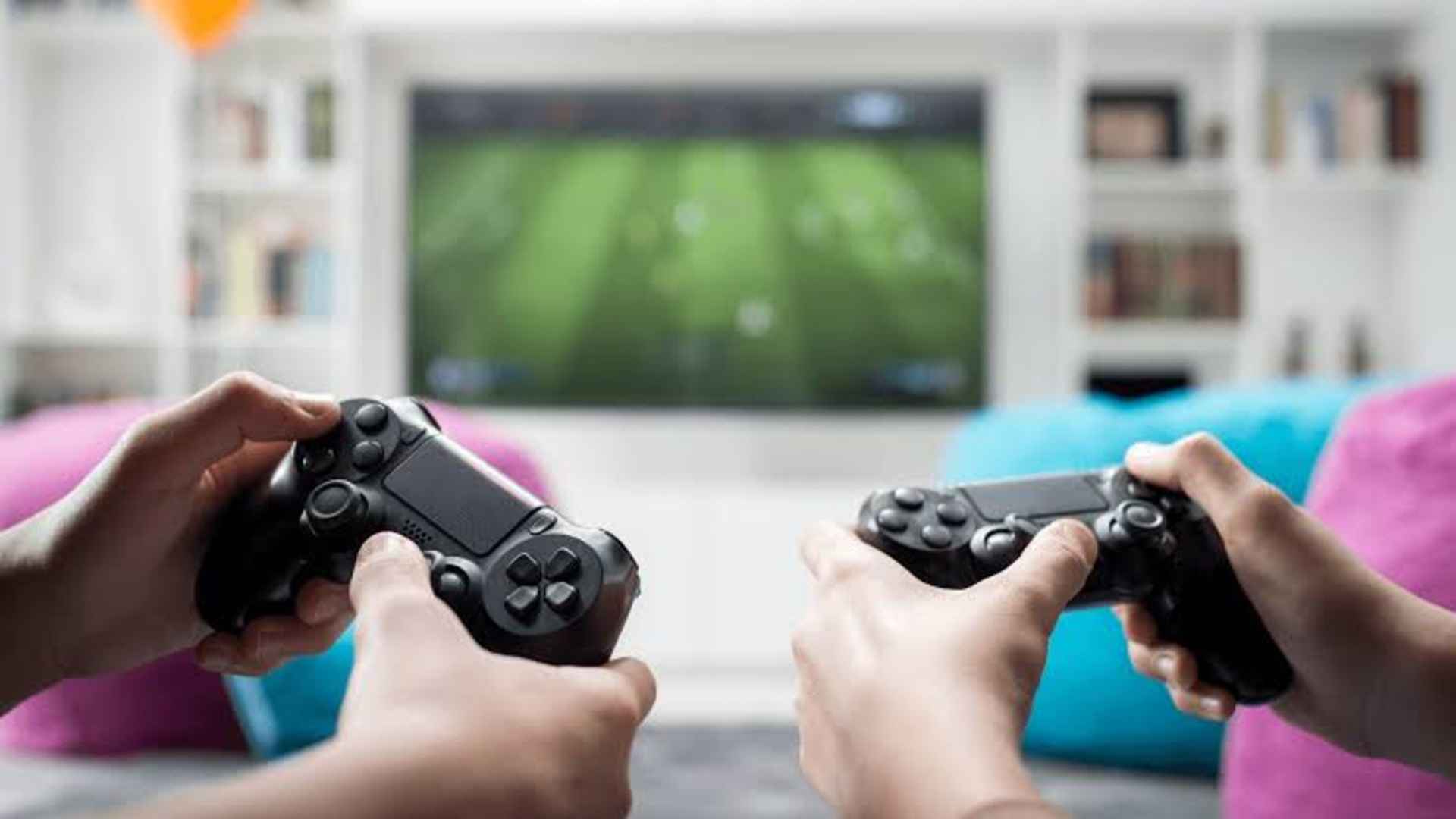
Once the initial setup is complete, you can sync your DualSense controller directly to your computer using either a standard USB-C cable or a compatible Bluetooth connection. This specific integration lets you enjoy your favorite console titles from the comfort of your computer desk even if the main television screen is occupied by someone else. The software dynamically scales your resolution based on your current network stability to maintain fluid frames during intense gaming sessions.
Using Hardware Capture Cards for Content Creation
For aspiring content creators and live streamers, relying solely on network-based streaming applications might introduce unwanted visual artifacts or delayed audio sync. Utilizing a dedicated external hardware capture device bridges the physical connection between the console's HDMI port and your desktop's open USB interface perfectly. This physical method routes the clean video feed from the console directly into professional broadcast software tools like OBS Studio or Streamlabs without putting an extra processing burden on your computer hardware.
When configuring this specialized ecosystem, you must remember to manually disable the High-bandwidth Digital Content Protection setting inside the console's system menu beforehand. Leaving this active will result in a blank black screen across your recording software because it interprets the broadcast software as an unauthorized recording device. Once disabled, you can easily record high-fidelity footage at maximum framerates while maintaining a lag-free pass-through video signal directly to your main desktop display.
Connecting the DualSense Controller for Native PC Gaming
Beyond simply transferring the video signal, many enthusiasts choose to connect the advanced console peripherals to enhance their native computer gaming library experience. Modern storefronts like Steam provide comprehensive built-in driver configurations that natively recognize the advanced rumble and trigger features of the DualSense pad when plugged in via a high-speed data cable. This gives desktop players access to tactical haptic feedback options that were previously exclusive to console environments.
Connecting the controller wirelessly requires accessing the Bluetooth management settings menu on your operating system and holding down the Create and PlayStation buttons simultaneously until the light bar flashes rapidly. Once paired, the controller operates as a standard input device compatible with thousands of titles across various desktop launchers. This cross-compatibility ensures that your hardware investments remain highly practical across multiple ecosystems.